Stop fighting
the cable.

AERAS SHARE puts photos, documents, slides or a live screen on the meeting room display from the Controller tablet or any browser. It also books the room, and lets IT look after every room from one place. All of it runs on the network you already have.

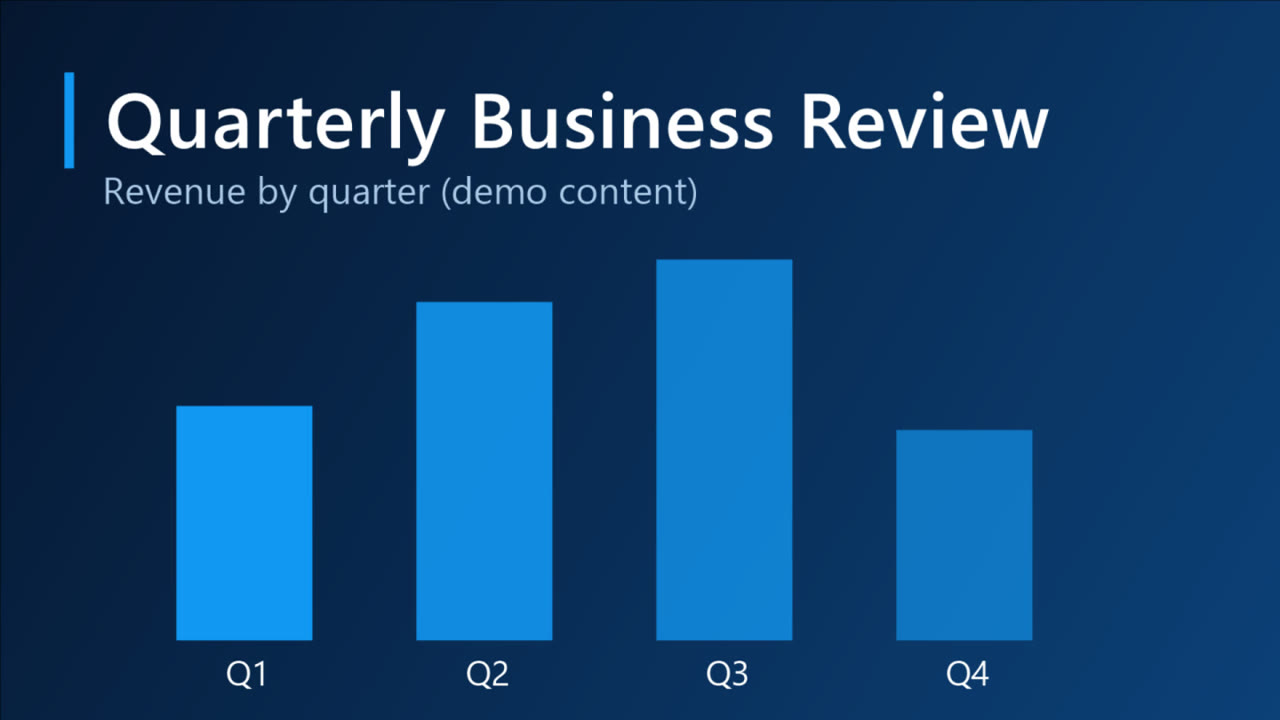
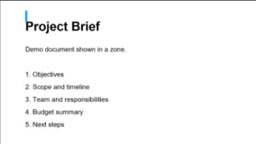
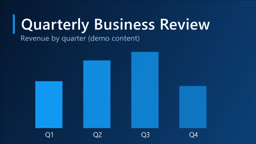
A slide on the receiverShared from the Controller
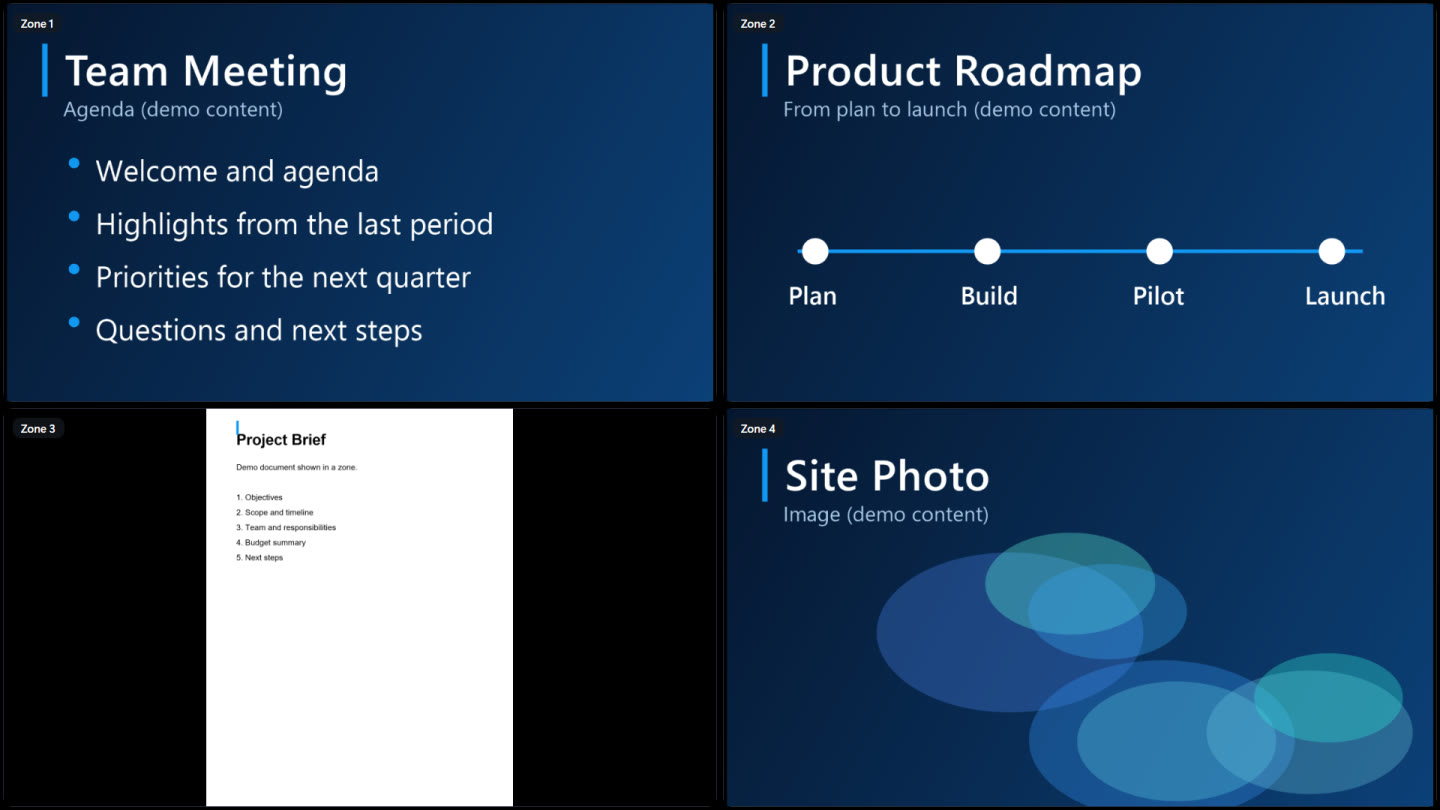
Four zones on one receiver screenFour zones, one screen
Annotating from the Controller
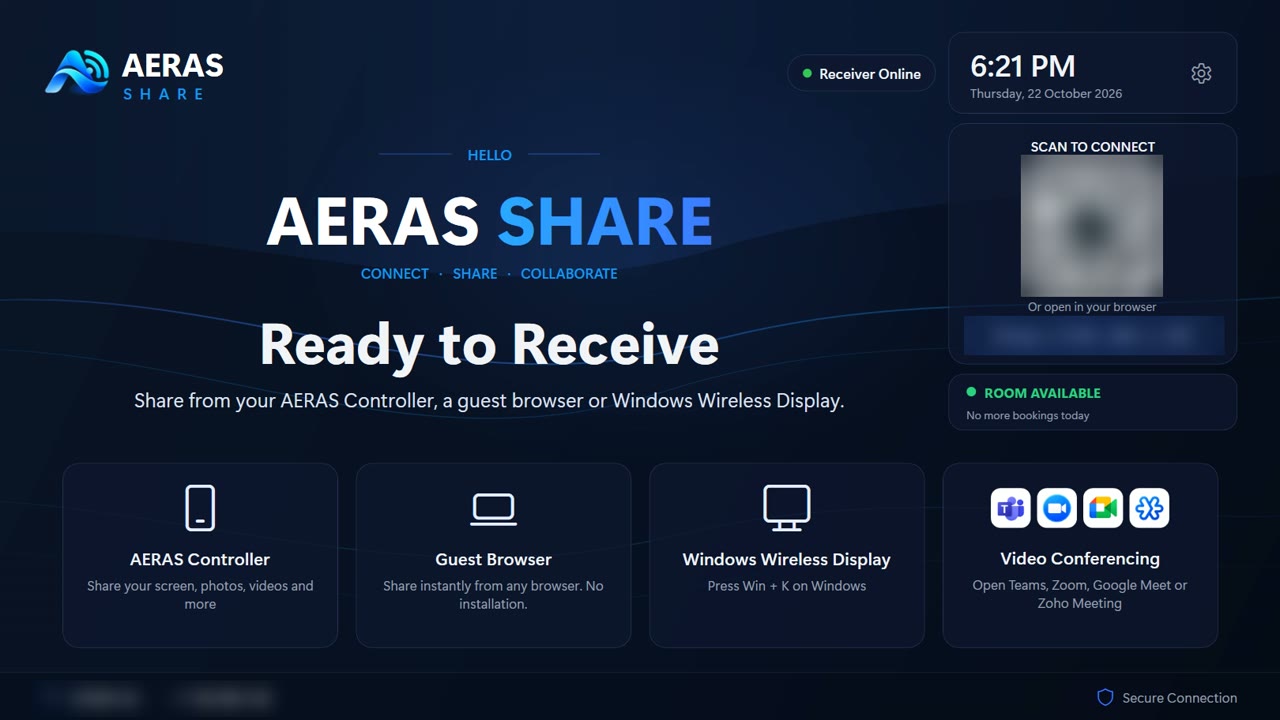
The receiver's Ready screen showing the room is availableRoom available
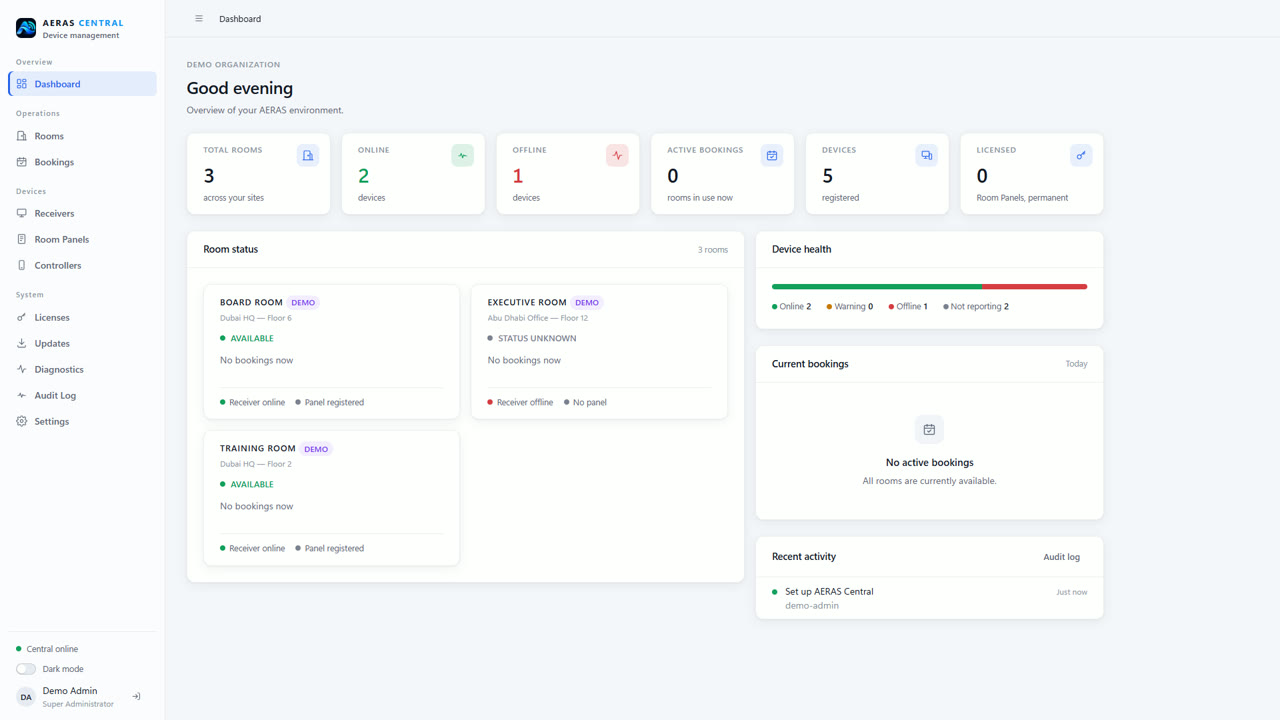
The AERAS Central dashboard with demo roomsAERAS Central

Tap a scene · Real receiver screens and AERAS Central, with demo content

A meeting, start to finish

Walk in. Throw. Done.

  1. Walk inBoard Room is free, and the panel by the door says so.
  2. Step insideThe screen is off. Nobody is looking for a cable.
  3. Pick up the ControllerIt already knows which room it's in.
  4. Turn the screen onOne tap on the Controller wakes the receiver.
  5. Throw the slideA flick of the wrist, and it's up there, checked and full screen.
Why it exists

The first five minutes of a meeting shouldn't be about cables.

Adapters, logins, the wrong input, and the classic "can you see my screen?". AERAS SHARE takes care of those, for the people in the room and for the team that looks after it.

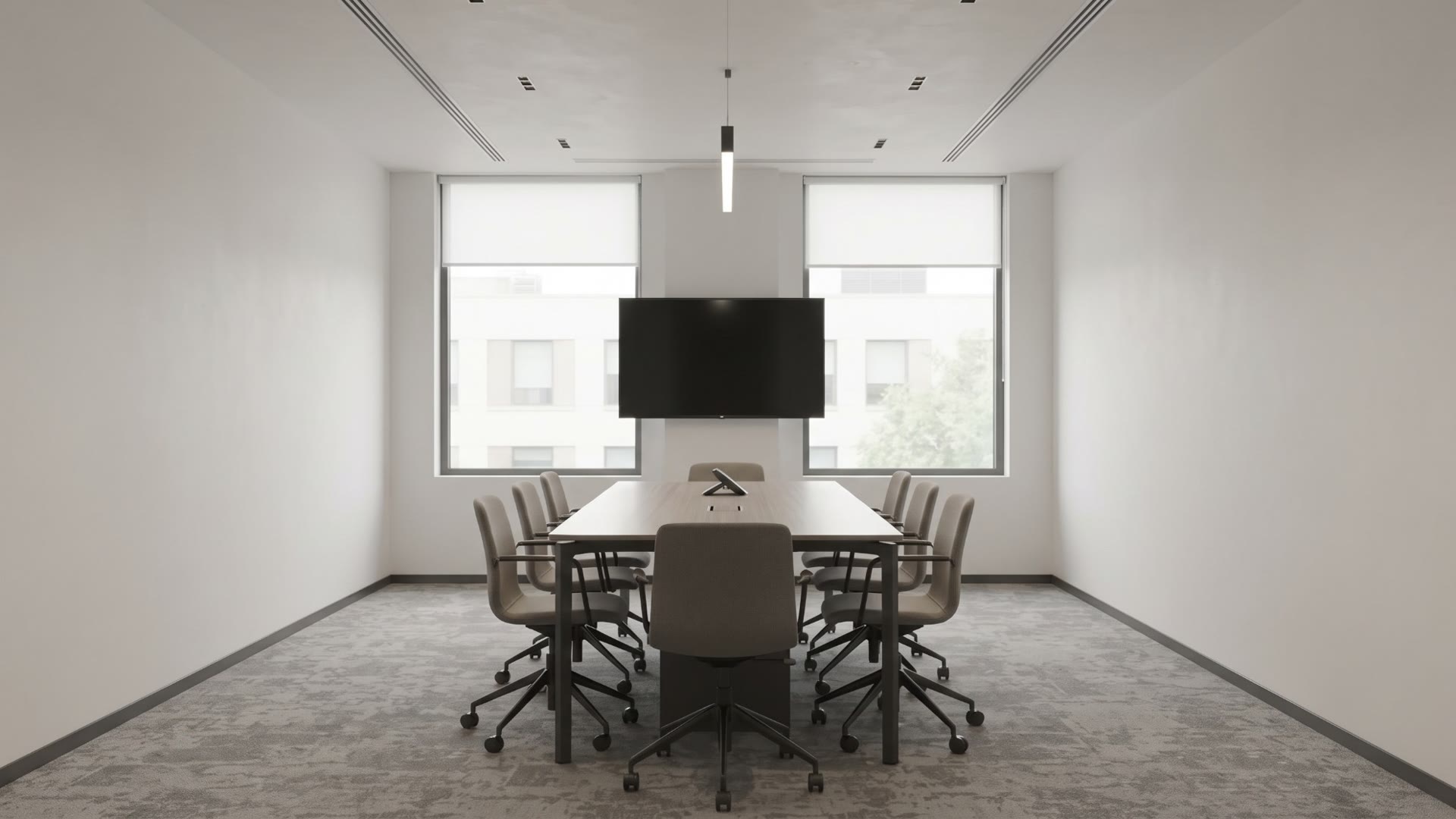
Flip the switch to see the same meeting room before and after.

WithoutWith AERAS SHARE
Before

Find the cable, the adapter and the right input, then wait for it all to wake up.

With AERAS SHARE

Pick a file on your tablet and throw it. It's on the big screen, checked and full screen.

Before

Your photos, videos and documents are stuck on your device.

With AERAS SHARE

Photos, video, PDF, PowerPoint, Word and Excel go straight from the Controller to the room display.

Before

Walk back to the front of the room to turn a page or pause a video.

With AERAS SHARE

Turn pages and slides, play, pause, seek and set the volume from your seat.

Before

One thing on screen at a time.

With AERAS SHARE

Put a document beside a live screen or a whiteboard, in up to ten zones, and bring any one full screen.

The old way vs the AERAS way

Same room. Fewer things to plug in.

Two drawings of the same meeting room. On the left, everyone's device has to reach the display through a cable. On the right, people share over the room's network, and the cables that stay are the room's own, fixed in place.

Traditional cable-based meeting room

Before
Drawing: a traditional cable-based meeting room A laptop on the table reaches the display through a USB-C adapter, an HDMI cable to the floor box and a cable up the wall. The camera and microphone run on a separate USB cable to the laptop. The floor box is wired to the network switch. A visitor stands at the side, waiting to connect. No signal Display Camera Speaker / mic Switch Wall plate Adapter HDMI Floor box USB 1 2 3 4 5 6

What goes wrong

  1. 1Adapter dependencyUSB-C, HDMI or DisplayPort: the right dongle is rarely in the room.
  2. 2Cable dependencyThe presenter stays where the cable reaches.
  3. 3Device switchingEvery new presenter means unplugging and waiting for the input.
  4. 4More points of failureCamera, mic and display run on separate cables to one laptop.
  5. 5Difficult guest sharingVisitors need the right port, a driver or IT's help.
  6. 6Cable clutter, limited controlCables across the table and floor; nothing controls the room from a seat.
  • Cables people plug in

AERAS SHARE meeting room

With AERAS SHARE
Drawing: the same meeting room with AERAS SHARE The display shows four zones. The AERAS SHARE Receiver sits behind the display and is wired to it, to the camera, to the speaker and microphone, and to the network switch. The Controller tablet, a laptop and a phone on the table, and the Room Booking Panel beside the door, connect over Wi-Fi to the room's network. AERAS Central runs on a server elsewhere on the same network and manages the receiver. AERAS Central Display · 4 zones Camera Speaker / mic Receiver Switch Wi-Fi Panel Controller On-premise server 1 2 3 4 5 6 7 8 9 10 11

What connects to what

  1. 1Display, LED or projectorUp to ten zones on one screen.
  2. 2AERAS SHARE ReceiverA Windows computer behind the display, wired to it.
  3. 3CameraConnected to the receiver; used by the video conference.
  4. 4Speaker / microphoneConnected to the receiver. Volume set from the Controller.
  5. 5Network switchThe receiver on the room's wired LAN.
  6. 6Wi-FiThe customer's own network.
  7. 7AERAS ControllerAndroid app: share, throw and control the room.
  8. 8LaptopShares its screen from a web browser. Nothing to install.
  9. 9Phone or tabletThe Controller app, or a guest sending a file by QR code.
  10. 10Room Booking PanelAndroid tablet at the door; talks to the room's receiver.
  11. 11AERAS CentralOn-premise console that manages every receiver.
  • Fixed room wiring
  • Wi-Fi / LAN
  • Management
Share content
  1. Laptop · phone · tablet
  2. Wi-Fi / LAN
  3. AERAS SHARE Receiver
  4. Display
Control the room
  1. AERAS Controller
  2. Wi-Fi / LAN
  3. AERAS SHARE Receiver
  4. Share · Throw · Control · Screen power
Book the room
  1. Room Booking Panel
  2. Wi-Fi / LAN
  3. AERAS SHARE Receiver
  4. The room's own schedule
Manage every room
  1. AERAS Central
  2. LAN · pinned TLS
  3. Each receiver
  4. Devices · bookings · updates · licenses

Traditional room

  • Physical cables to every presenter
  • Adapters and dongles
  • Manual input switching
  • Connecting device by device
  • Cable clutter on the table and floor
  • Little control of the room from a seat

AERAS SHARE

  • Wireless sharing over the local network
  • Grab & Throw: pick it, flick it, it's up
  • Room control from the Controller
  • Up to ten zones on one display
  • Guest sharing from a web browser
  • Room booking at the door
  • Device management in AERAS Central
  • Security built into pairing, updates and licenses
  • Central management, on premise
  • Made for professional AV rooms

Power, the network and the display, camera and audio wiring stay in the room. What goes is the cable people have to plug in.

A quick look

51 seconds, no voice-over.

An illustrated walkthrough of a meeting room, with real AERAS SHARE receiver screens on the display.

0:00 / 0:51

Real product screens with demo content · no sound · drag the bar or pick a part to skip ahead

The receiver

Split the screen however you like.

Pick a layout on your tablet and send each thing to the zone you want: slides next to a spreadsheet, a live screen next to a whiteboard. Up to ten zones if you really need them. Any zone can go full screen and come back.

Layouts up to 10 zones · up to 4 live device screens at once · one video heard at a time

The AERAS SHARE receiver showing a 4-zone layout with slides, a roadmap, a document and an image
Real receiver screen · demo content
How it works

Yes, you can throw it.

Pick a photo, video, PDF or presentation on your Android tablet and flick your hand towards the screen. The tablet's camera sees the throw and sends it, and a one-tap Send button does the same job. The room checks the file and puts it up full screen.

  • Photos, video, PDF, PowerPoint, Word and Excel
  • Every file checked with SHA-256 before it is shown
  • Turn pages, slides and video from the tablet, without sending anything again
  • Nothing kept on the tablet after it is sent
The receiver's Ready to Receive screen
✓ Verified

Tap a file to throw it · Real receiver screens with demo content

The full list

Everything it does today.

Every capability on this list is built into AERAS SHARE today: sharing, collaboration, video conferencing, room booking, central management and security, in one platform.

01Sharing

  • Throw AnythingPhotos, videos, PDFs, PowerPoint, Word and Excel, sent from your tablet to the room display.
  • Gesture throwFlick your hand towards the screen; the tablet's camera recognises the throw and sends.
  • Verified deliveryEvery file is checked with SHA-256 before it is shown. A file already on the screen isn't sent twice.
  • Large filesUp to 1 GB per file, over your local network.
  • Nothing left behindTemporary copies on the tablet are deleted after sending; your original is never touched.
  • Clear screenOne tap removes everything shown and deletes the received content from the room.
  • Rooms found automaticallyNearby rooms appear by name on the network, or connect by address.
  • Office documents, locallyPresentations and documents are converted on the receiver itself, page by page. Nothing goes to a cloud.

02Presenting

  • Multi-zone layoutsTwo to ten zones on one display, any content in any zone.
  • Focus a zoneBring one zone full screen and back to every zone, animated, without interrupting the others.
  • Pages & slidesTurn PDF pages and presentation slides from the tablet. Navigation never re-uploads.
  • Zoom from the tabletPinch to zoom a photo, PDF page or slide on the room display, up to 4×. It works while you draw on it too, and your marks stay in place.
  • Videos inside slidesA video in a PowerPoint file plays on its slide, in its place. Play, pause, seek and set its volume from the tablet.
  • Photo sets & slideshowSend several photos at once, then step through them or run a slideshow.
  • Video controlPlay, pause, seek, volume and mute, per zone, from the tablet.
  • Audio focusSeveral videos can play; only the one you're working with is heard.
  • Zones that close upClear a zone and the rest rearrange into the next smaller layout.
  • Screen power & volumeTurn the room display on or off and set its volume from the app.

03Live screens & guests

  • Show this screenShare the Controller tablet's screen live on the room display.
  • Four live screensUp to four device screens at once, each in its own zone, mixed with content.
  • Guest screen sharingVisitors share from a web browser, with nothing to install, into the zone they choose.
  • Guest ThrowGuests send a file by scanning a QR code, with no app; the presenter decides what reaches the screen.

04Video calls

  • Video conferencingMicrosoft Teams, Zoom, Google Meet and Zoho Meeting open on the receiver, in the provider's own app or browser.
  • Built-in remote controlWhile a conference is open, the Controller drives the receiver's mouse and keyboard.
  • Present beside the callA guest presents a browser screen into a zone on top of the conference, which stays open.
  • No accounts heldThe room never receives meeting-provider sign-ins or tokens.

05Working together

  • Live annotationDraw over a photo, PDF page or slide in any zone; the file itself is never changed.
  • WhiteboardOpen a whiteboard full screen or in a zone and sketch from the app.
  • Polls & votingAsk a question; people vote by scanning a QR code, with no app. Nothing is stored.

06Rooms & booking

  • Room bookingBook from any browser, the room panel or the app. The room keeps its own schedule.
  • Room Booking PanelA dedicated app for a tablet at the door: available, reserved or in use, at a glance.
  • Check-in & releaseCheck in at the door; a booking nobody checks in to is released after 10 minutes.
  • Ready screenClock, room name, the next booking and end-of-meeting notices on the room display.
  • Screen saverYour own image or video on the room display when nobody is presenting, and a screen saver on the panel.
  • Your brandingRoom logo, wallpaper and text on the display, and your logo on the panel and app.

07AERAS Central

  • One consoleRooms, receivers, room panels and controllers in one on-premise inventory.
  • Remote settingsDisplay, time zone, volume, screen power, name, screen saver and branding, from your desk.
  • Remote password & restartChange a room's password or restart it without walking to the room.
  • Signed updatesPush software updates; each room verifies the signature before installing.
  • Licenses & activationActivate room panels and keep permanent licenses in one place.
  • Bookings everywhereDay, week and calendar views across rooms, with check-in, check-out and cancel.
  • Rooms stay independentEvery room keeps working if the console is offline.

08Security

  • Local network onlyContent moves between devices on your LAN. No cloud service is needed.
  • Approved at the roomControllers and panels pair with a room only after approval there.
  • Device keysDevices prove who they are with keys held on the device itself.
  • Encrypted managementThe console reaches each room over TLS, pinned to that room's own certificate authority.
  • Offline licensesLicenses are verified on the device, with no online check.
  • Roles & audit logAdministrator roles in the console, and a record of every change.
Room booking

Booked rooms that nobody uses?

Every room keeps its own schedule on your network, and the AERAS Room Booking Panel at the door shows whether it's free. If nobody checks in within 10 minutes, the booking is released and the room goes back to people who actually need it.

  • Book from the panel or any browser. Attendees don't need an account
  • Available, reserved and in use, at a glance
  • Day, week and calendar views across rooms in AERAS Central
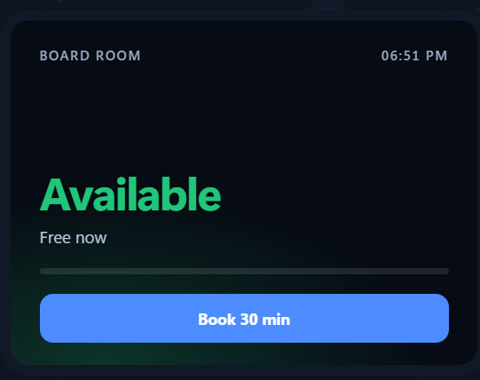
Board Room--:--
Available
Free now

Try the panel · Illustration

AERAS Central · on-premise architecture

It runs on your network.
That's the whole point.

Rooms, devices and the management console all run on your premises. Content moves between devices on the local network; AERAS Central manages every room over a verified, encrypted connection.

Diagram: Controller tablets, guest browsers and Room Booking Panels connect over the local network to each room's receiver; AERAS Central manages the receivers on the same network Devices Controller tablets Guest browsers Booking panels Room receiver Display & zones Bookings Local license AERAS Central Inventory & settings Updates & licenses Audit log Local network Verified · TLS
How AERAS SHARE connects the room

One room, drawn for IT.

Who talks to whom, over which network. Room traffic stays between the devices and the room's receiver on your local network; AERAS Central manages the receivers on that same network.

Layered architecture: user devices and room control devices reach the room's receiver over Wi-Fi or wired LAN; the receiver drives the display, camera and audio; AERAS Central manages the receivers over the same local network.
  • Local room communication
  • Central management communication

User devices

Windows laptopShares its screen from a web browser. Nothing to install.
Android phoneThe AERAS Controller app, or sends a file to the room as a guest.
Android tabletThe AERAS Controller, with a Tablet Mode for the larger screen.
Guest deviceAny browser for screen sharing; a QR code to send a file. No app, no account.
Wi-Fi / LAN

Room control

AERAS ControllerPaired with one receiver. Share, Grab & Throw, zones, pages and video, whiteboard, polls, screen power, volume, video conferencing.
AERAS Room Booking PanelAndroid tablet at the door: available, reserved or in use; book, check in, check out. Reads and writes the bookings kept on the room's receiver.
Wi-Fi / LAN

Network

Customer's local networkWi-FiWired LANNo cloud service needed for sharing, booking or management
Wired LAN

Room

AERAS SHARE ReceiverWindows computer at the display. Checks and shows content, keeps the room's bookings and works on its own.
Display / LED / projectorDriven by the receiver: full screen or up to ten zones.
CameraConnected to the receiver; used by the video conference running on it.
AudioSpeaker and microphone on the receiver. Volume and mute from the Controller.
Management · TLS pinned to each room's own certificate authority

Central management

AERAS CentralOptional on-premise console. Rooms keep working if it is offline.
Device managementRoom managementLicensingUpdatesMonitoring: status and last seenBookings across roomsRoles and audit log

Local room communication. Content, control and bookings travel between the devices and the room's receiver over the local network. Content isn't sent to a cloud service, and Office files are converted on the receiver.

Central management communication. AERAS Central reaches each paired receiver over TLS pinned to that room. It needs no internet connection. The internet is used only by video conferences, through the meeting provider's own service.

Device connection map

Every device in one picture: what it connects to, and what it controls.

AERAS Central manages the network's receivers. On the local network: user and guest devices share to the receiver; the AERAS Controller controls it; the Room Booking Panel books the room through it. The receiver drives the display, camera and audio.
AERAS CentralOn-premise · optional
Management · updates · licenses
Local network · Wi-Fi / wired LAN
User & guest devicesWi-Fi / LAN
Share
Laptop: browser screen sharePhone / tablet: Controller appGuest: browser or QR code
AERAS ControllerAndroid · paired
Control
Share · Grab & ThrowZones · pages · videoScreen power · volume
Room Booking PanelAndroid · at the door
Book
Book · check in · check outBookings kept on the receiver
AERAS SHARE ReceiverWindows · at the display
Drives
DisplayCameraAudio

Security by design

Layer by layer, what is built into AERAS SHARE today.

DeviceDevice security

  • Device ID for each receiver: random, stable, separate from IP, MAC, user and name
  • Android Keystore keys on Controllers and Room Booking Panels; private keys never leave the device

NetworkNetwork security

  • Local-network operation: no cloud service is needed for a room to work
  • TLS with the receiver's own certificate authority
  • Certificate pinning: the Controller and AERAS Central pin the room's authority
  • Guest page over HTTPS on the room's network

ApplicationApplication security

  • Every Controller action is checked on the receiver
  • Guests are limited to their own actions: no settings, files, admin or updates
  • Guest Throw: the presenter decides what reaches the screen
  • Receiver password and recovery code stored as PBKDF2-SHA256 hashes, with lockout

IdentityIdentity and pairing

  • Controller pairing approved at the receiver, with a single-use QR or 6-digit code
  • ECDSA P-256 key pair per Controller
  • Challenge-response on every connection, bound to that TLS session; replays fail
  • One paired Controller per receiver; unpair from the receiver at any time

DataData security

  • Content travels on the local network and stays there
  • Shown content is deleted from the receiver on Clear and on exit
  • Nothing is left on the presenter's device after a send
  • No private key, password or recovery code is logged or sent over the network

ManagementCentral management

  • Signed updates: ECDSA P-256 / SHA-256, checked before install
  • Rollback protection: no downgrades; a failed start rolls back to the previous version
  • Licenses signed with ECDSA P-256, bound to the Device ID and verified offline
  • Administrator roles and an audit log in AERAS Central

Want to see it in your rooms?

Tell us a little about your rooms. A member of our team will reply to you personally.

Our team will get back to you within one business day.

Prefer email? Write to contact@aerasshare.com.

Contact Us